Print a Large Image on Multiple Pages
On this page(7)
Quick Answer: To print a large image across multiple pages at home without installing software, open Rasterbator.org, upload your JPG, PNG, WebP, or PDF, pick US Letter (8.5 × 11 in) or A4, keep Plain Tile (No Effect) for a crisp original photo (or pick from 15 artistic styles), download the free multi-page PDF with crop marks and A1 / B2 labels, and print at 100% Actual Size (with Fit to Page: Off).
Why Use a Browser Poster Splitter Instead of Paint, Excel, or Adobe?
Most built-in workarounds break down as soon as you try to print across 4, 9, or 12 sheets:
- Mac Preview cannot tile images across pages at all, forcing macOS users into clunky PDF workarounds.
- Canva has no native multi-page home printer tiling — you have to export your Canva design as a high-res PNG or PDF first, then split it in a browser tiler.
- Windows MS Paint ("Fit to X by Y pages") adds zero crop marks, zero overlap strips, and routinely distorts aspect ratio.
- Adobe Acrobat Reader ("Poster" print mode) requires a desktop install, only accepts PDFs, and won't sharpen blurry images.
What You Get Free on Rasterbator.org
- Free, no sign-up, no watermark, unlimited pages: Export multi-page PDFs or ZIP archives of individual JPG tiles with zero area cap (unlike tools capped at 2×2 sheets).
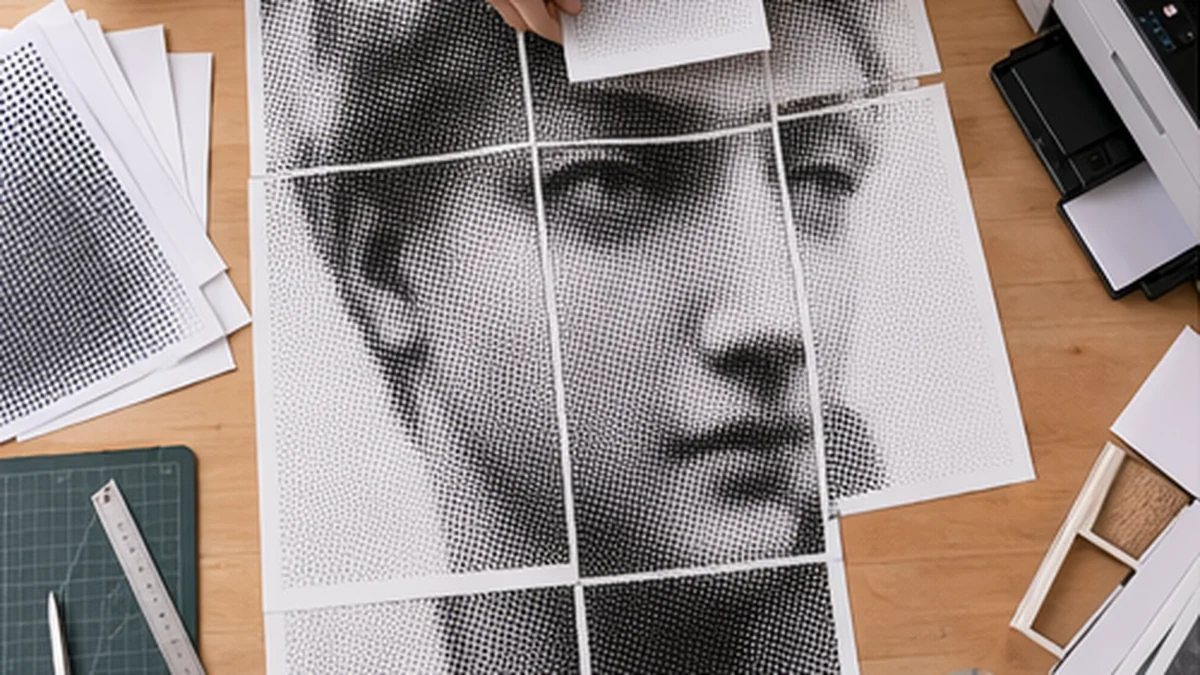
- Original smooth photo OR 15 styles: Defaults to Plain Tile (no forced halftone dots) so photos, maps, Canva posters, and diagrams stay sharp.
- US Letter (8.5 × 11 in), Tabloid (11 × 17 in) & A4: Supports portrait/landscape paper, aspect-safe
Containframing, crop marks, adjustable seam overlap, andA1 / B2page labels. - Works on Windows, Mac, Chromebook, iPhone & Android: Core tiling runs 100% locally in your browser — your files never leave your device.
- Optional built-in AI photo sharpening: Fix blurry or low-resolution web/phone photos (≤4 MP, up to 4×) directly in Step 1 without downloading separate desktop software.
Step 1: Choose How Many US Letter or A4 Pages You Need
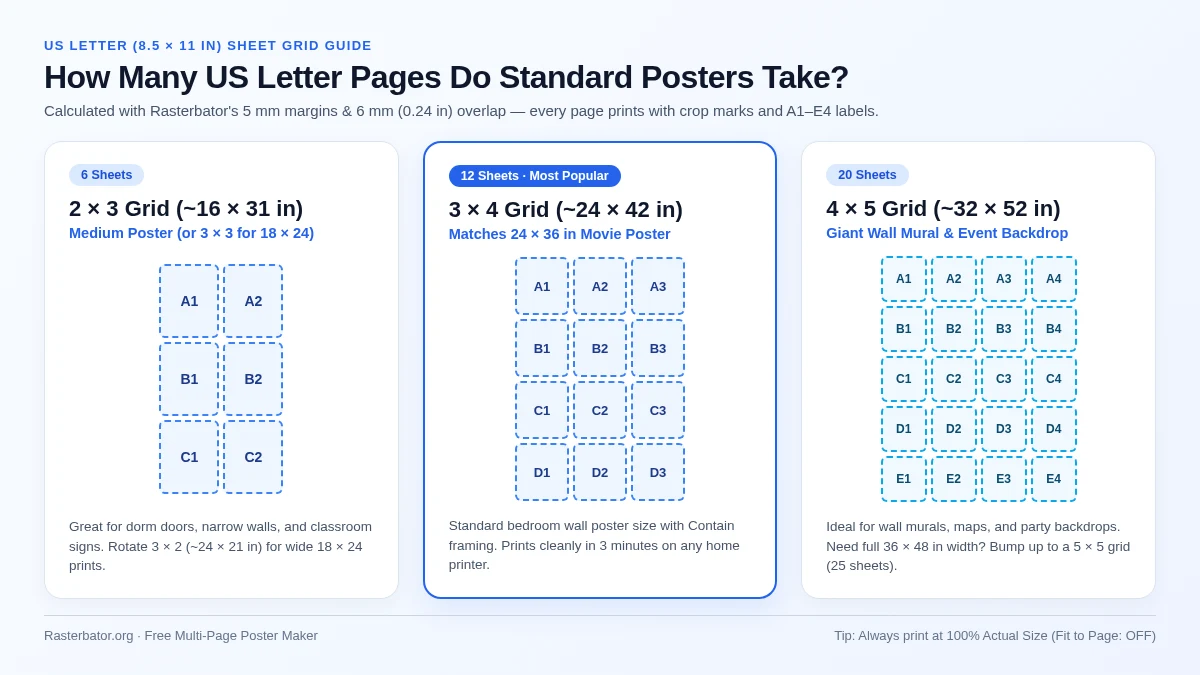
Standard US poster frames and wall spaces map cleanly to US Letter (8.5 × 11 in) grids once you allow a 0.25 in print margin and 0.2 in seam overlap:
| Target Poster Size | US Letter Grid | Total Sheets | Approx. A4 Size | Best Use Case |
|---|---|---|---|---|
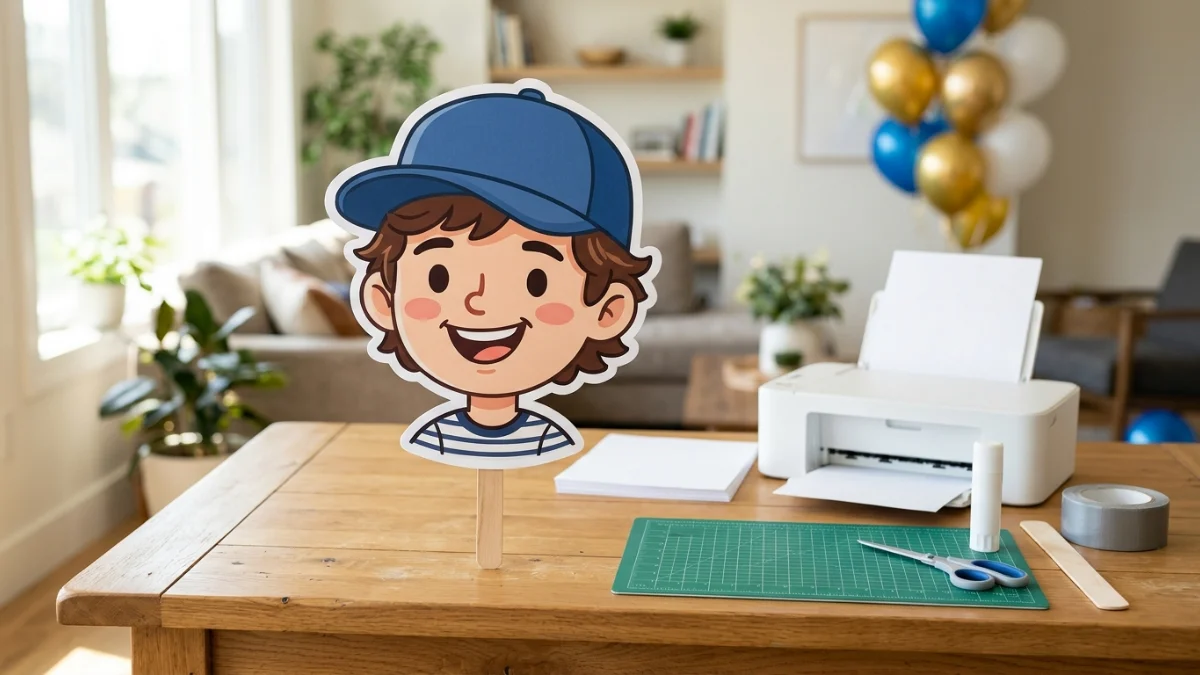
| Small (~15 × 20 in) | 2 × 2 | 4 | 38 × 55 cm | Dorm sign, kitchen wall print, big-head prop |
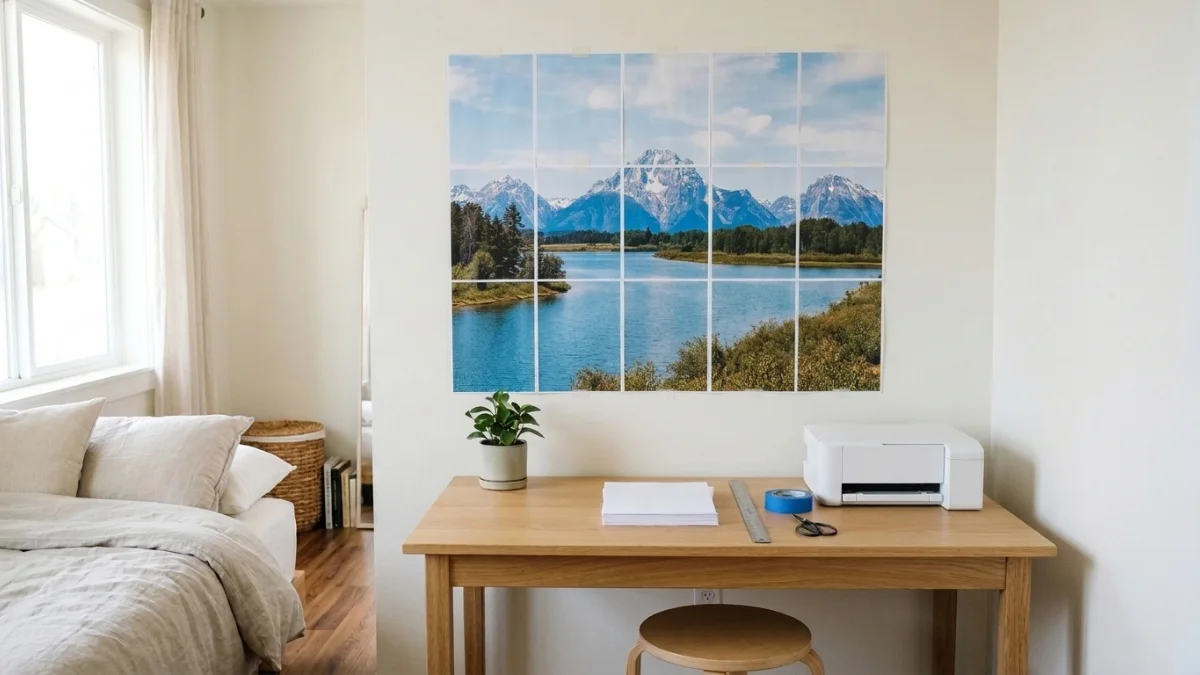
| Medium (~16 × 31 in / 18 × 24 in rotated) | 2 × 3 (or 3 × 3 for 18 × 24 portrait) | 6 | 38 × 82 cm | Bedroom print, classroom anchor chart, event sign |
| 24 × 36 in Movie Poster | 3 × 4 | 12 | 56 × 109 cm | Most popular wall poster size (trim to 24 × 36 in) |
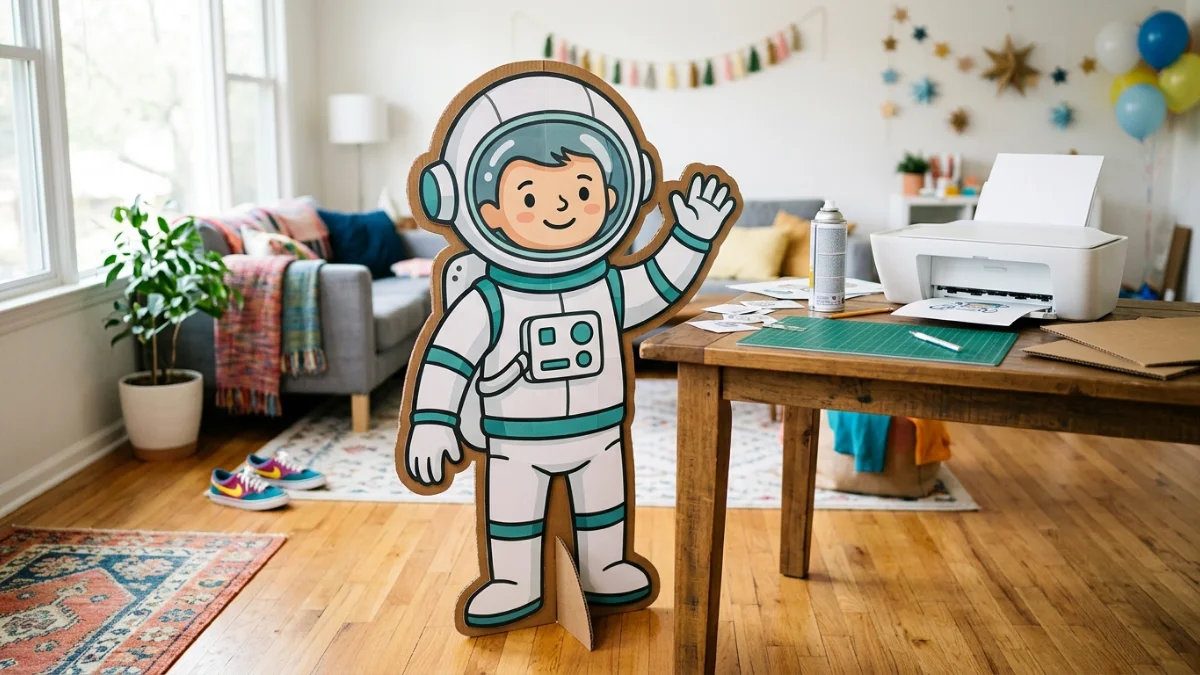
| Giant Mural (~32 × 52 in) | 4 × 5 (5 × 5 for 36 × 48 in) | 20 | 74 × 136 cm | Science fair tri-fold board, giant mural, party backdrop |
Want exact sheet counts for a custom wall width? Plug your wall dimensions into our Wall Planner.
Step 2: Launch a One-Click Aspect-Safe Preset
Click a preset below to open Rasterbator with US Letter (or A4), Plain Tile (no dots), Contain (prevents stretching), crop marks, and A1/B2 page labels already turned on:
- US Letter 2 × 2 Grid (4 sheets) — fast 4-page enlargement
- US Letter 2 × 3 Grid (6 sheets, ~16 × 31 in) — compact portrait poster
- US Letter 3 × 4 Grid (12 sheets, fits 24 × 36 in) — classic full wall poster
- US Letter 4 × 5 Grid (20 sheets, ~32 × 52 in mural) — oversized mural or science board
- A4 3 × 4 Grid (12 sheets) — international A4 printer preset
Step 3: Check Resolution — Fix Blurry Photos Before Printing
Blowing up a small photo (such as a 736 px Pinterest save, WhatsApp image, or cropped phone screenshot) across 12 sheets drops effective print sharpness below 100 DPI. You can check your exact DPI first in the DPI Calculator, or let Step 1 of Rasterbator flag soft images automatically:
- High-res photos (>4 MP): Ready to tile immediately as a crisp free PDF.
- Low-res photos (≤4 MP): Use the built-in AI Photo Sharpening preview inside Step 1 (4× upscale for images ≤1 MP, 2× for 1–4 MP) — or open our Image Upscaler. Standard PDF/ZIP tiling stays 100% free; downloading the AI-sharpened result is included in the optional $4.99 one-time 7-day Pro pass (no recurring subscription).
Step 4: Print on Windows, Mac, Canva, or Phone (Exact Settings)
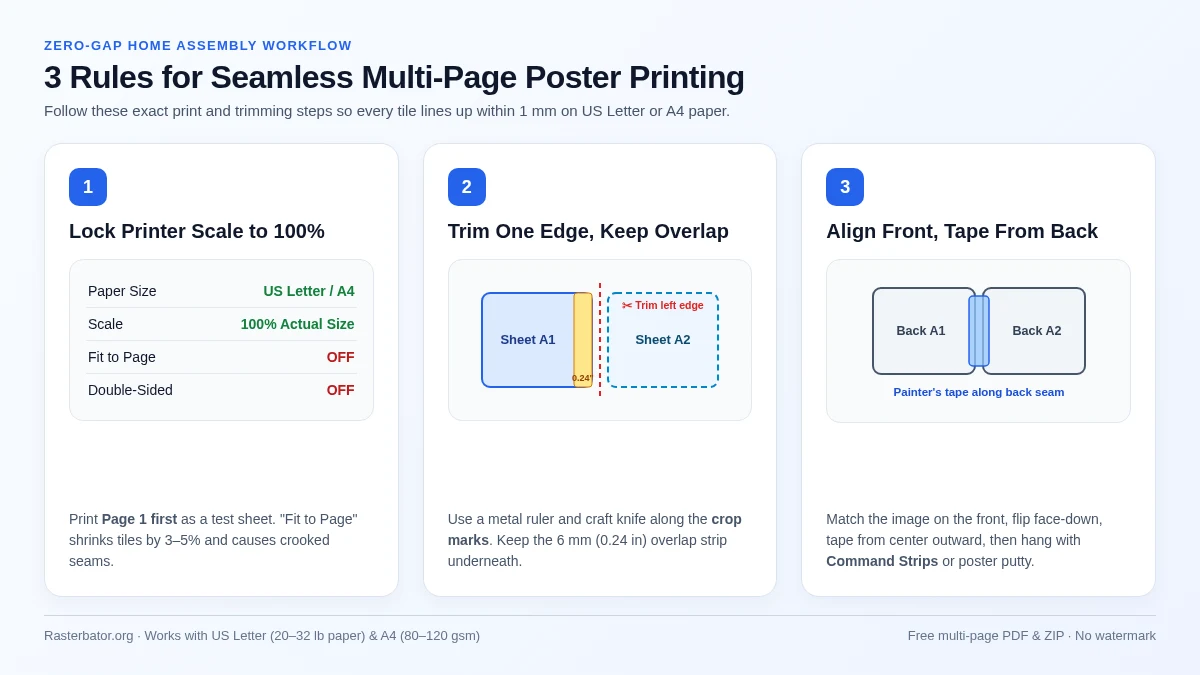
Whether you are printing from a MacBook, Windows PC, Chromebook, iPhone (AirPrint), or a Canva export (download your Canva design as PDF Print or PNG first, then upload it to Rasterbator), lock these exact printer settings so every seam aligns:
| Printer Setting | Choose This | Why |
|---|---|---|
| Paper Size | US Letter (8.5 × 11 in) or A4 | Matches the PDF sheet geometry |
| Scale | 100% / Actual Size | Stops printer drivers from shrinking tiles |
| Fit to Page | Off | Prevents mismatched edges across rows |
| Pages per Sheet / Duplex | 1 page per sheet · Double-sided Off | One full tile per physical sheet |
| Recommended Paper | 24–32 lb presentation paper (or 20 lb copy paper) | 24–32 lb (90–120 gsm) resists ink curling on full-color photos |
Print Page 1 first to confirm margins, trim one overlapping white border with a metal ruler and craft knife, match the artwork on the front, flip face-down, and run blue painter's tape along the back seams. Mount cleanly on painted walls with Command Strips or removable poster putty. For advanced paper & ink advice, see our Printing Tips Guide.
Frequently Asked Questions
How do I print a large image on multiple pages on a Mac without Adobe Acrobat?
macOS Preview has no poster tiling option. Open Rasterbator.org in Safari or Chrome on your Mac, upload the image, select US Letter or A4, download the multi-page PDF, open it in Preview, choose Scale: 100%, and print.
How do I print a Canva poster across multiple US Letter sheets?
In Canva, click Share → Download and export as PNG or PDF Print. Upload that exported file to Rasterbator.org (with Plain Tile and Contain selected), pick your grid size (e.g., 3 × 4 for 24 × 36 in), and download your free tiled PDF.
Can I print an image across multiple pages from my iPhone or Android phone?
Yes. Rasterbator.org works right inside mobile Safari and Chrome with no app download or sign-up. Upload directly from your photo library, download the PDF, and print via AirPrint or Mopria (or save to Files and print at Staples, FedEx Office, or UPS Store on 8.5 × 11 or 11 × 17 paper).
Does Rasterbator add halftone dots to my photo?
No — Plain Tile (No Effect) is the default, keeping your photo smooth and continuous-tone. Halftone, CMYK, mosaic, and line effects are completely optional in Step 3.